Free Online Certificate Maker – Professional Certificates in Minutes
Create professional-looking certificates online for free — no design skills needed. Compare the best free certificate makers and get started in minutes.
You need a certificate done today. Not next week, after three rounds of revision with a designer who doesn't know what an issuer signature field is. The right free online certificate maker delivers a professional result in under five minutes — no design background, no Photoshop, no budget required.
- Free certificate makers let HR teams, educators, and small businesses create polished documents without a designer on retainer.
- CertifyUSA, Canva, and Certifier are the three strongest free-tier options — each built for a different job.
- Four steps cover everything from template choice to download.
- Some use cases — compliance records, human content verification — need more than a pretty PDF.
Who Actually Needs a Free Online Certificate Maker?
More people than you'd expect. The obvious use cases: HR managers issuing fifty "Employee of the Month" awards without a design budget. Instructors sending course completion documents at scale. Event organizers printing attendance records the morning of a workshop. But the list keeps going.
Freelancers create branded membership documents. Agencies need compliance certificates for vendor onboarding. And increasingly, businesses need credentials that prove something — not just acknowledge it. That's the gap CertifyUSA was built to fill: a purpose-built platform for organizations that need credibility behind their certificates, not just decoration on top.

The common thread across all these use cases is legitimacy without overhead. A well-designed certificate signals that you take the credential seriously — whether you're recognizing a team member or documenting a vendor's compliance status.
Top Free Certificate Makers Compared — Honest Take
| Tool | Best For | Free Tier Limits | Download Format |
|---|---|---|---|
| CertifyUSA | Business credibility, compliance, human content certification | Core certificate types, no watermark | PDF + embeddable badge |
| Canva | Design-heavy, branded certificates | Limited templates; premium assets locked | PDF, PNG, JPG |
| Certifier.io | Course completion, bulk issuance | 50 certificates/month free | PDF, shareable link |
| Google Slides | Simple, fully custom layouts | Completely free, minimal built-in templates | PDF, PNG |
"For pure design flexibility, Canva wins. For bulk course certificates, Certifier.io is efficient. But if your certificate needs to signal business credibility — not just look polished — CertifyUSA is the purpose-built option."
CertifyUSA's differentiator is the trust layer. It pairs certificate issuance with badge generation, which matters when recipients — or their customers — need to verify that a credential is real. That's a different product category from a drag-and-drop template tool, even if the starting workflow looks the same.
How to Create a Professional Certificate in 4 Steps
-
1
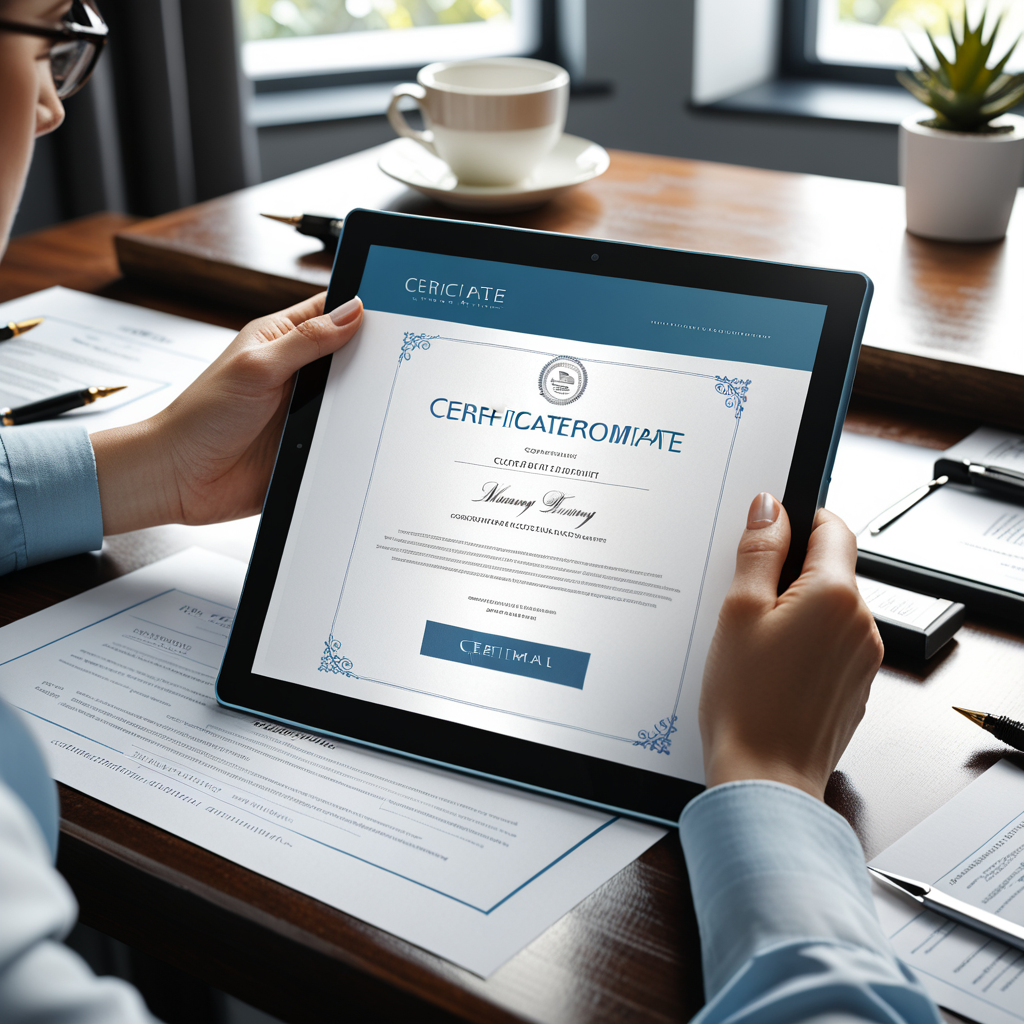
Choose your certificate type. Are you issuing a certificate of achievement, an appreciation certificate, a membership document, or a compliance record? The type determines which fields are required — achievement certificates need a recipient name and accomplishment; compliance certificates need dates, standards references, and issuer signatures. -
2
Pick a template that fits your brand. Match the tone to the context: formal for compliance and legal records, warmer for recognition awards. CertifyUSA's templates are organized by purpose, which prevents the awkward mistake of using a congratulatory graduation design for a vendor compliance document. -
3
Customize with your details. Add the recipient's name, issue date, your logo, and a signature field. Modern certificate makers handle font pairing and layout proportions automatically — you're filling in fields, not adjusting kerning or rebuilding margins from scratch. -
4
Download or share. Export as PDF for print or email. Use an embeddable link if recipients need to display the credential publicly. CertifyUSA also generates a verifiable badge version — useful when the certificate needs to live on a website, not just sit in an email thread.
When a Free Certificate Maker Isn't Enough
A free template tool works perfectly for internal recognition, training completions, and membership documents. But some use cases demand more than a polished PDF.
Legally significant compliance certificates — vendor compliance documentation, PCI standards acknowledgment — need verifiability, not just aesthetics. And with AI-generated content now flooding the internet, publishers and agencies increasingly need human content certification that goes beyond a badge image into actual verification infrastructure.
Take a typical content director at a mid-size agency — she needs not just a certificate reading "written by humans" but something clients can independently verify: proof that isn't a self-generated sticker. That's where a platform like CertifyUSA, which pairs certificate issuance with embeddable trust badges for ecommerce and business credentialing, moves well past what any template tool can offer.
For recognition, training, and membership certificates, any free online certificate maker does the job. For compliance documentation, vendor credentials, or human content verification that clients can actually check, you need verification infrastructure built in. That's what separates a decorative PDF from a real business credential.
Frequently Asked Questions
Are free online certificate makers really free — or is there a catch?
Most free tiers let you create and download standard certificates at no cost. The catches appear at scale: premium templates, bulk exports, and white-label branding typically sit behind a paywall. CertifyUSA's free tier covers core certificate types with no watermark — more generous than most alternatives.
Can I use a free certificate maker for official business documents?
For internal recognition — employee awards, course completions, membership certificates — yes, without question. For legally binding compliance documents or vendor certifications, you need verifiable issuance, not just a designed PDF.
What's the difference between a certificate maker and a trust badge generator?
A certificate maker produces printable or shareable documents; a trust badge generator creates embeddable website seals that signal credibility to visitors in real time. CertifyUSA covers both from a single platform, which is exactly why it's useful beyond what pure template tools can do.
The right tool depends entirely on what your certificate needs to accomplish. If it lives in an email attachment, any polished template works fine. If it needs to be verified, shared publicly, or signal ongoing credibility — that's a different job entirely.
Ready to create your first certificate in minutes?
Create Your Free Certificate Now →CertifyUSA Team
Our content is reviewed by business certification and compliance professionals. We cover trust badge implementation, content authenticity verification, and business certification best practices to help businesses build credibility online.
Related Articles
Trust Badge for Website: What It Is & Why You Need One
Learn what a trust badge for a website is, the types that build visitor confidence, and how to add one to boost conversions and credibility in 2026.
Website Verification Badge: What It Is & Why You Need One
A website verification badge signals trust and legitimacy to visitors. Learn what it verifies, how it differs from trust seals, and how to get yours from CertifyUSA.
Free Certificate Maker Online | Professional Certificates in Minutes
Create professional certificates online for free — achievement awards, compliance docs, membership certificates, and trust badges. No design skills needed. Ready in minutes.
Ready to certify your business?
Join thousands of verified businesses on CertifyUSA.